How to Send Photos on WhatsApp Without Losing Quality (Full Resolution, No Compression)
You take a great photo on your phone. The detail is sharp, the colours are accurate, and the composition is exactly right. You send it to someone on WhatsApp. They receive a noticeably blurrier version with washed-out colours and visible compression artefacts.
This happens to everyone who uses WhatsApp regularly, and it is entirely intentional. WhatsApp compresses photos it sends as images in order to reduce mobile data consumption and speed up delivery. The compression is applied automatically, and until recently, there was no way to disable it through normal settings.
This guide explains exactly what WhatsApp does to your photos, the best methods for sending them without quality loss, and when a shareable image link is a better solution than sending the file directly.
How Much WhatsApp Compresses Your Photos
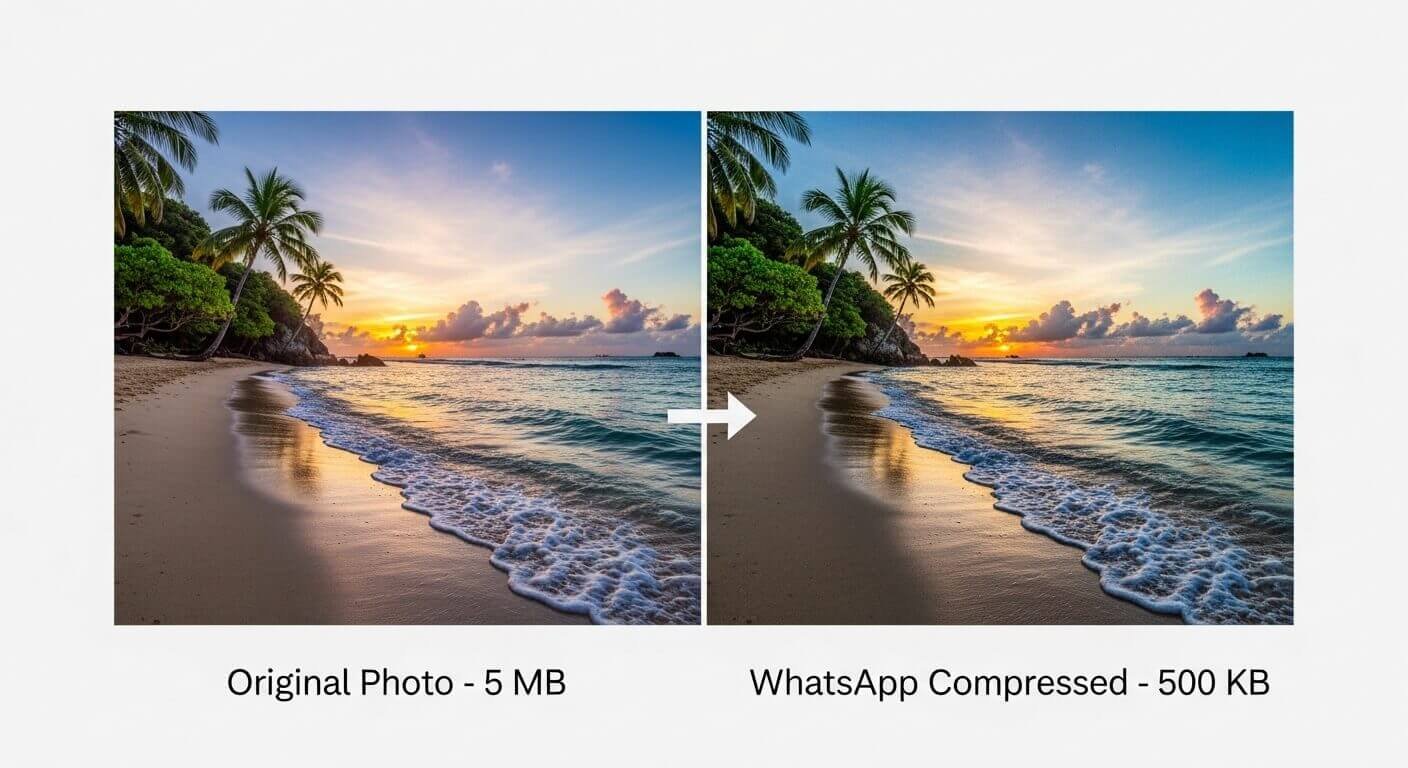
WhatsApp reduces image quality to approximately 70 to 80 percent of the original when sending through its standard image pathway. The compression algorithm optimises for file size reduction rather than quality preservation, which means fine detail, gradients, and areas with subtle colour variation suffer most visibly.
A photo from a modern smartphone camera might be 5 to 12 megabytes in its original file. WhatsApp compresses this to 50 to 200 kilobytes before sending — a reduction of up to 99 percent. At the receiving end, your recipient gets a file that contains a fraction of the original data.
The visual impact is most obvious in:
- Text in photos (sharp text becomes fuzzy)
- Fine fabric textures and patterns
- Natural foliage and grass (becomes uniform blobs of colour)
- Skin tones and portrait detail
- Architectural detail and stonework
- Any image you intend to print or use professionally
For casual social sharing — a quick snapshot of lunch or a meme — the compression is acceptable. For product photography, professional work, family memories you want to keep, or any image where quality matters, the standard WhatsApp pathway is inadequate.
Method 1: Send as a Document (Preserves Original Quality)
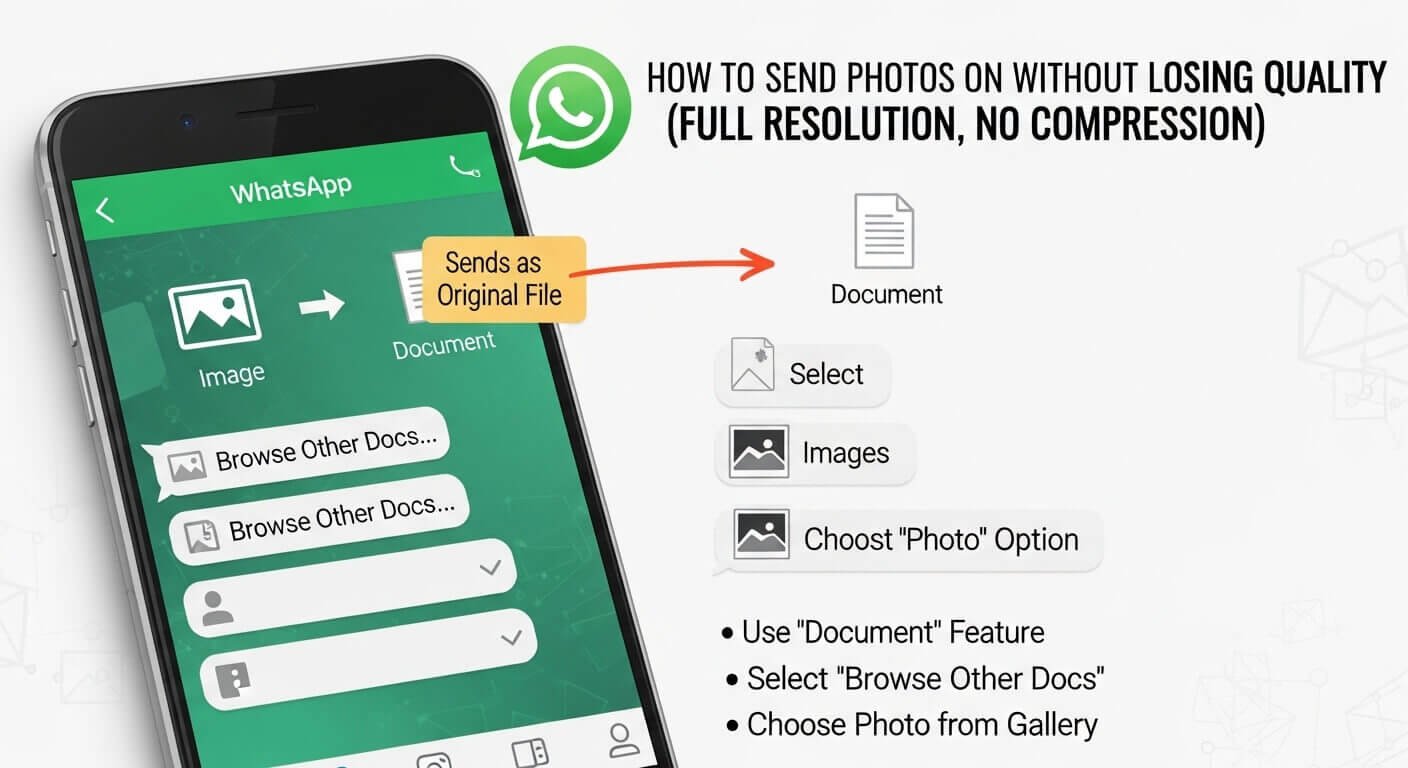
The most reliable way to send a full-quality photo on WhatsApp is to send it as a document rather than as an image. WhatsApp does not compress files sent through the document pathway — it delivers the original file exactly as it was.
- On iPhone: Open the WhatsApp conversation. Tap the “+” or paperclip icon next to the message field. Select “Document.” Browse to the photo in your Files app (if the photo is in your Camera Roll, you may need to save it to Files first using the Share Sheet → Save to Files). Select the file. Send. The recipient receives the original file at full quality with no compression.
If your photos are not visible in Files by default, you can save them there via Photos → select photo → Share → Save to Files → choose a location → Save. Then send from Files via WhatsApp document.
- On Android: Open the WhatsApp conversation. Tap the paperclip icon. Select “Document.” Use the file picker to navigate to your photo files. On most Android devices, you can navigate to Pictures or DCIM directly from the file picker. Select the image file. Send. The recipient receives the uncompressed original.
The document method works because WhatsApp’s compression pipeline is specifically applied to files routed through the image upload pathway. Documents bypass this pipeline entirely.
- The one trade-off: Documents appear in chat with a filename and a download button rather than displaying inline as a preview. The recipient needs to tap to download and then open the file in their gallery or file viewer. For most purposes, this is a minor inconvenience; for some use cases (sending multiple photos for someone to browse quickly) it is less convenient than the image pathway.
Method 2: Use WhatsApp’s “HD” Quality Setting
WhatsApp introduced a high-quality image option that reduces but does not eliminate compression. In current versions, when you select photos to send via the standard image pathway, a small “HD” badge appears at the top of the image preview screen. Tapping this badge switches from Standard to HD quality before sending.
HD quality in WhatsApp still applies some compression — the resulting file is not the original. But the compression is significantly less aggressive than Standard mode, resulting in noticeably better quality at the destination. For most photography and most situations, HD quality is the best balance between quality and the convenience of in-line image display.
How to enable it: Select the photo(s) you want to send in WhatsApp. Before tapping the send button, look for the HD badge in the top right area of the preview. Tap it. Select “HD quality.” Send.
Note: the HD setting applies per session — WhatsApp does not remember your preference between conversations. You need to select HD each time if you want higher quality.
Method 3: Share a Direct Image Link Instead of the File
For photos where quality is critical — product photography, professional work, images sent to clients — a better approach is to upload the image to a hosting service and send the link rather than the file.
This bypasses WhatsApp’s compression entirely because you are not sending an image file through WhatsApp at all. You are sending a text link. The recipient opens the link in their browser and sees the full-quality original exactly as you uploaded it.
How to do this:
Go to chatpic.co.uk and upload your photo. Copy the Direct link from the result screen. Paste that link into your WhatsApp message and send it.
The recipient sees a link in the chat. When they tap it, their browser opens and displays the full-quality image with no compression. They can save it from there at full resolution.
This method is particularly effective for:
- Sending product photos to a buyer before a sale — they can view every detail at full resolution
- Sharing edited photography work with clients for approval
- Sending reference images to someone who needs to reproduce a design accurately
- Sharing property or accommodation photos where accurate colour and detail matter
The link approach also lets you share the same image with multiple people across multiple platforms — WhatsApp, Telegram, email, SMS — without re-uploading each time.
Method 4: Compress Before Sending, But on Your Terms
If the recipient specifically wants a smaller file (for storage space, for easy forwarding, for use on a website with size requirements), you can compress the image yourself before sending, giving you control over the quality level rather than leaving it to WhatsApp’s algorithm.
Tools for this: Squoosh (squoosh.app) is a free browser-based image compressor that lets you set the output quality precisely and preview the result side by side with the original before saving. You choose the quality level and format, export the compressed version, then send via WhatsApp. The result at your chosen quality level will look better than WhatsApp’s automatic compression at the same file size, because WhatsApp’s algorithm prioritises speed over quality optimisation.
This approach is useful for professional workflows where you have specific file size requirements but also need to control the output quality precisely.
Which Method to Use in Different Situations
For quick sharing of memories, group photos, or casual snapshots where quality is not critical: WhatsApp’s standard image pathway is fine. The compression is acceptable for social use.
For everyday sharing where quality matters but you want images to display inline in chat: Use the HD quality setting. It significantly reduces compression while keeping the inline preview experience.
For professional work, client communication, product photography, or any image where accurate quality is essential: Send via the document method or share a ChatPic link. Both deliver the original file without compression.
For sharing with multiple people across different platforms simultaneously: Upload to ChatPic, share the link. One upload, one link, works everywhere — WhatsApp, Telegram, email, SMS, Discord, Reddit — all receive the same full-quality image.
What Happens to WhatsApp Images Over Time
A detail many people do not consider: WhatsApp stores received images in your phone’s media gallery, but the compressed version is what gets stored, not the original. If you send someone a photo via WhatsApp and later both of you delete the original from your respective devices, the only copies that remain are the compressed versions.
This is another reason the link method is valuable for important photos. The original file stays hosted at the link, fully accessible at original quality, for as long as you want. You are not dependent on what either sender or recipient has left in their WhatsApp gallery.
A Note on Privacy: GPS Data in WhatsApp Photos
When you send a photo via WhatsApp as a document — preserving full quality — you also preserve all EXIF metadata, including GPS location. The recipient receives the original file intact, which means they receive your location data embedded in it.
If the photo was taken at your home, your home address is in the file you just sent.
For most WhatsApp contacts, this is not a concern — you know the people you are messaging. But if you are sending product photos to a buyer through a marketplace, or images to a professional contact you do not know personally, consider stripping the GPS data before sending, even via the document method.
The screenshot method provides the easiest solution: take a screenshot of the photo before sending it as a document. The screenshot contains no GPS data from the original.
Or upload to ChatPic first — EXIF data, including GPS, is automatically stripped on upload — then send the link. Your recipient gets full-quality access to the image with no GPS data in the hosted file.
Frequently Asked Questions
Why does WhatsApp compress photos?
WhatsApp was originally designed for use on slow mobile data connections with limited data plans. Compressing images reduces data consumption and speeds up delivery. As global internet speeds have improved, WhatsApp has introduced the HD quality option, but compression remains the default because most users never change it, and it keeps the app fast on slower connections.
Does the HD setting send the original full-resolution photo?
No. WhatsApp’s HD mode reduces compression significantly compared to Standard mode, but it still applies some compression. The original file is not delivered via any in-app image pathway. Only the document method delivers the uncompressed original.
Can the recipient tell if I sent an HD photo versus a standard photo?
On most devices, photos received in HD mode look noticeably sharper and more detailed than Standard. However, there is no visible badge or indicator telling the recipient which quality mode was used — it is visually obvious from the image quality itself.
Does the document method work in WhatsApp group chats?
Yes. You can send documents in group chats. All members receive the original file via the same download process as in individual chats.
What is the maximum file size WhatsApp accepts for documents?
WhatsApp allows documents up to 2GB in size. For image files, this limit is effectively never reached in practice since even very high-resolution RAW files from professional cameras are typically well under 100MB.
Is a shared link safer to send than the original file?
In most cases, yes, for privacy reasons. A ChatPic link delivers the image without EXIF metadata. Sending the original file via document delivers all metadata intact. For personal contacts where privacy is not a concern, either method works. For contacts you do not know well, the link is safer.