
Free Image Hosting for eBay Listings: Add Unlimited Photos to Your Description (2026)
eBay gives you 12 free photo slots in your listing gallery. For most products, that is not enough. A jacket needs detail shots of the stitching, the label, the pockets, the zipper, the lining, and the actual colour in different lighting. A car part needs multiple angles and close-ups of every potential flaw. Electronics need every port, every label, every bit of wear shown clearly.
The solution is to use your eBay listing description area for additional photos. The description is a full HTML field — you can embed as many images as you want using standard <img> tags. The images just need to be hosted somewhere online and have a stable, publicly accessible URL.
This guide covers how to do this for free, which hosts actually work reliably with eBay’s listing crawler in 2026, and which popular options (including some you might assume are safe) cause problems.
Why eBay Sellers Need External Image Hosting
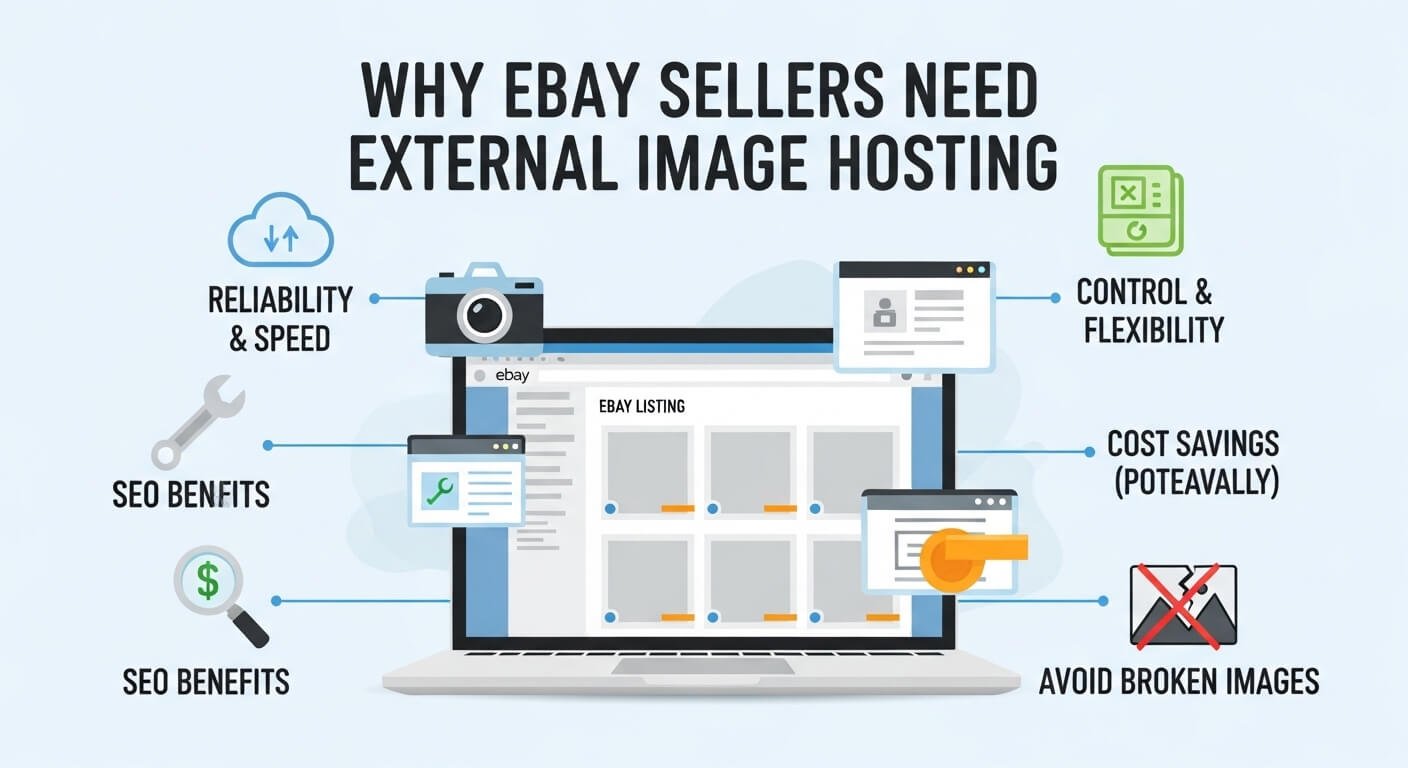
When you upload images through eBay’s standard listing interface, they go into eBay’s own picture servers and appear in the main gallery at the top of your listing. These are your 12 free slots.
The description section beneath the gallery is a completely separate HTML field. eBay does not host images for the description — if you want images there, you need to provide URLs pointing to images hosted somewhere else. eBay fetches those images from the external server and renders them inside your listing for buyers.
Having more images in your description directly impacts conversions. The more clearly a buyer can see exactly what they are getting — every angle, every detail, every potential imperfection disclosed — the more confident they feel about purchasing, and the fewer disputes you deal with after sale. Experienced eBay sellers routinely use 20 to 40 images across the gallery and description combined.
What eBay Requires From an External Image Host
Not every image host works for eBay. When a buyer loads your listing, eBay’s servers fetch the images from your external host and render them. If the host does not allow this type of hotlinking, or if it returns a redirect or authentication challenge, the image will not display — your buyer sees a broken image icon instead.
The requirements for a host to work reliably with eBay are:
The image URL must point directly to the image file. It must be publicly accessible without any login, redirection, or referrer restriction. The host must not block eBay’s marketplace crawler by IP address or user agent. The URL must remain stable and not expire or change without warning.
eBay also recommends images of at least 1600 x 1600 pixels with a 1:1 or 16:9 ratio, in JPG format, for the main gallery. Description images can be any format and aspect ratio since they are displayed within your description’s HTML.
Which Hosts Work — and Which Do Not
This matters more than most sellers realise. The popular choices are not always the reliable ones.
Imgur — does not reliably work for eBay
Imgur is the most widely recommended free image host in general, but it specifically blocks hotlinking from eBay listings. Sellers in the eBay community forum have repeatedly reported that Imgur images that worked initially begin returning broken links after some time. Imgur’s terms of service do not prohibit embedding, but the technical reality is that their CDN returns blocked responses to eBay’s crawler in many cases. If you search eBay’s community forums for Imgur, you will find hundreds of posts from sellers with broken listing images.
Google Photos — does not work for eBay
Google Photos sharing links go through a redirect layer that requires a Google session. eBay’s crawler cannot pass this authentication, so the images never render in listings.
Photobucket — historically worked, now mostly paid
Photobucket used to be the standard recommendation for eBay sellers. It still allows hotlinking to eBay, but free accounts are extremely limited in 2026, and the upload interface is slow. For most sellers, paying for Photobucket is unnecessary when free alternatives exist.
PostImage — works reliably
PostImage (postimages.org) generates genuinely direct image URLs, allows hotlinking without restriction, and has no referrer blocking that affects eBay. Free, no account required, direct links available immediately after upload.
ChatPic.co.uk — works reliably
ChatPic’s free image sharing tool provides direct image URLs that are publicly accessible without authentication. No account, no watermarks, no compression. The direct link from ChatPic can be used in eBay description HTML directly. Images are served from a CDN, which means fast loading times for buyers regardless of their location.
How to Add Images to Your eBay Listing Description
This is a four-step process that most sellers can complete in under five minutes per listing.
Step 1: Upload your product photos to a reliable free host.
Go to chatpic.co.uk and upload your images one at a time (or use multi-upload if available). For each image, copy the Direct link from the result screen. Keep these URLs somewhere — a plain text notepad file works fine.
For a typical listing, you might need 5 to 10 description images on top of your 12 gallery photos. Upload them all at once and collect all the direct URLs before switching to eBay.
Step 2: Open your eBay listing editor and access the HTML view.
When creating or editing a listing, scroll to the description field. If you are using eBay’s standard visual editor, look for a button that switches to HTML view — it may appear as <> “HTML”, depending on your selling hub version. Sellers using eBay’s new listing experience find the HTML option under the three-dot menu in the description toolbar.
Step 3: Write the HTML for your image embeds.
Each image in your description is a <img> tag. The basic format is:
<img src="YOUR_CHATPIC_DIRECT_LINK_HERE" alt="Product detail" style="max-width:100%;height:auto;">
For a series of photos that display neatly one after another, wrap each in a paragraph tag:
<p><img src="LINK_1" alt="Front view" style="max-width:100%;height:auto;"></p><p><img src="LINK_2" alt="Back view" style="max-width:100%;height:auto;"></p><p><img src="LINK_3" alt="Label close-up" style="max-width:100%;height:auto;"></p>
The style="max-width:100%;height:auto;" part ensures images resize correctly on mobile devices, which account for over 60% of eBay purchases.
Step 4: Save and preview your listing.
Use eBay’s Preview function to see how the description renders before making the listing active. If images appear broken in preview, verify the URL is correct by pasting it directly into a browser — if it opens the image on a blank page, the link is working and the issue may be temporary. Try refreshing the preview.
Tips for Getting More Sales With Description Images
The way you arrange description images affects buyer confidence significantly.
Start with a clean overall shot that shows the item as a whole. This is what most buyers look at first to orient themselves.
Follow with systematic detail shots: front, back, sides, top, bottom, if relevant. Buyers who cannot physically examine an item need to feel they are doing the next best thing.
Photograph every flaw honestly and clearly. A scratch or mark photographed honestly in your description creates trust. The same flaw discovered by a buyer after receiving the item triggers a dispute. The description image is your proof that the flaw was disclosed.
Include a scale reference. A hand, a ruler, or a common object (a coin works well for small items) gives buyers a genuine sense of size that dimensions alone do not convey.
Photograph in natural daylight when possible. Colour accuracy in eBay listings is one of the most common reasons for returns — buyers receive something that looks different from the listing photos. Daylight captures colour most accurately.
Using External Hosting for Bulk Listing via CSV Upload
If you list products in bulk using eBay’s Seller Hub CSV template system, external image hosting becomes essential rather than optional. The CSV template includes fields for image URLs. You can list up to 24 images per product by providing external URLs in those fields — eBay fetches them during the listing creation process.
For sellers managing large catalogues, a consistent naming system for image files and a reliable host becomes critical. ChatPic works for this workflow — upload each product’s images, collect the direct URLs, and populate the CSV template. The process scales well for sellers with tens or hundreds of products.
Frequently Asked Questions
How many images can I have in an eBay listing total?
eBay allows up to 12 images in the standard gallery for free. The description field can contain additional images embedded via HTML with no stated limit, though extremely image-heavy descriptions may slow page load time for buyers on slow connections.
Can I use the same image link in multiple eBay listings?
Yes. A single ChatPic direct link can be used in as many listings as you want. If you have a standard banner, logo, or terms-of-service image you add to every listing, upload it once and reuse the same URL everywhere.
What happens if my image host goes offline?
All buyers who load your listing would see broken image icons instead of your photos. This is why choosing a reliable host matters. For active listings, periodically verify that your image URLs still load correctly.
Why is my description image showing in the preview but not in the live listing?
eBay’s listing editor preview uses your browser to fetch images directly, which works even with restricted hosts. The live listing fetches images via eBay’s own servers, which may be blocked by some hosts. If it works in preview but not live, your image host is blocking eBay’s crawler. Switch to ChatPic or PostImage.
Can I add images to old completed listings?
Yes. You can revise active listings at any time if they have not ended and have not received bids, or if more than 12 hours remain. For ended listings used as templates, edit and revise before relisting.